Interface
(Custom) Basic Interface
To access some of our server's special functions, the first step is to open your Inventory.
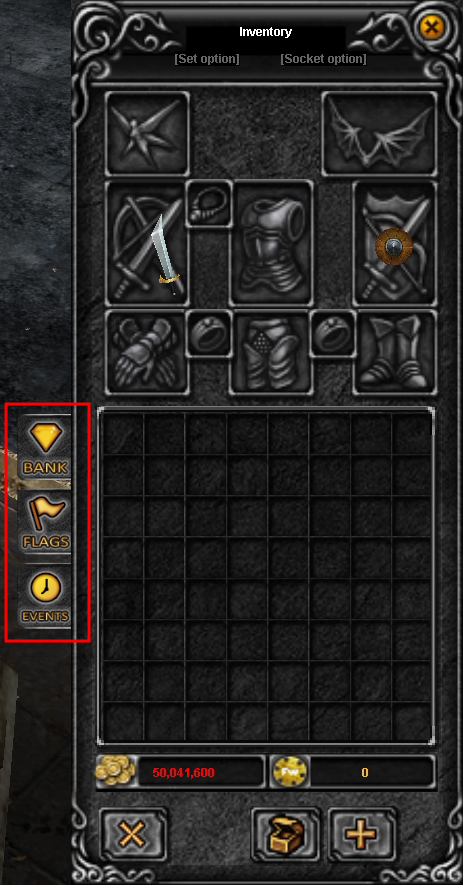
Custom Side Menu:
On the left side of your inventory, you will find a bar of quick buttons that give you access to the main systems:💎Jewel Bank: Opens the Jewel Bank. [J]
🚩Flags: Access the flags system.
🕒Events Times: Check the schedule of events and invasions in real time. [H]
💎Jewel Bank
The Jewel Bank is a system designed to save space in your vault and inventory, allowing you to store jewels infinitely and securely.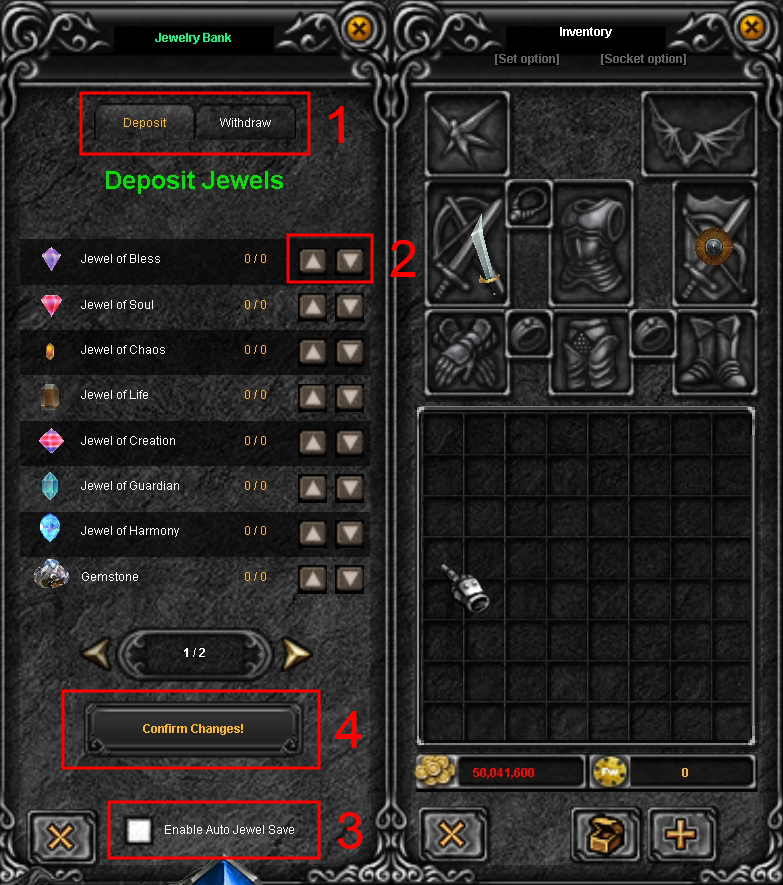
1. Mode Selector (Deposit/Withdraw):
Deposit: Select this tab to store jewels from your inventory to the bank.
Withdraw: Select this tab to take jewels out of the bank and return them to your inventory.
2. Counters and Quantity Arrows:
Here you will see the name of the jewel and the current amount (e.g., 0 / 0).
Use the up/down arrows to define exactly how many units you want to move.
3. Enable Auto Jewel Save:
If you check this box, any jewel you pick up from the ground will be sent directly to the bank, preventing them from taking up space in your main inventory.
4. Confirm Changes:
Important! No deposit or withdrawal action will take effect until you press this button. Always click here before closing the window.
🚩Flags
It is a visual system that allows users to display flags on their character's back.In the Fortune Wheel, there are flags with Exp benefits.
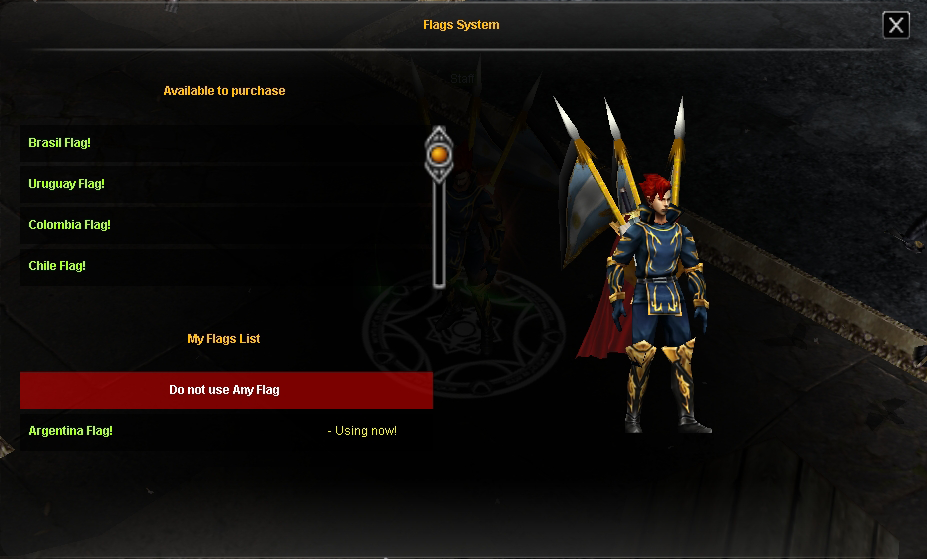
Available to purchase: This section shows the catalog of flags available for purchase.
My Flags List: Here are the flags that the user already owns.
Usage Status:
Using now!: Indicates which flag you currently have equipped (in the image, the Argentina one).
Do not use Any Flag: Select this option (marked in red) if you prefer to hide any flag and show none.
🕒Events Times
This panel allows you to manage your playtime and learn about the benefits of each challenge.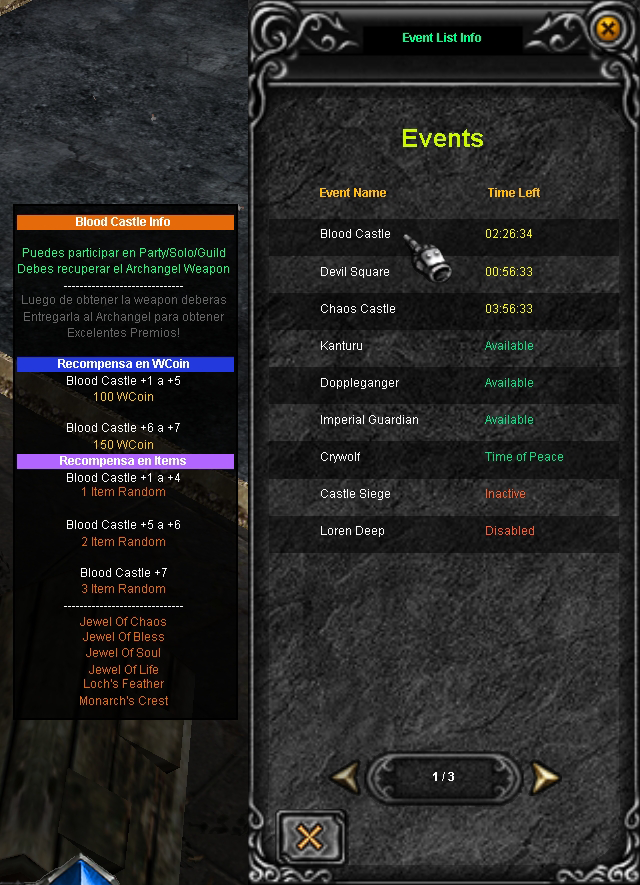
Time Information:
In the main list, you will see three possible statuses for each event or invasion.
Countdown (HH:MM:SS): Indicates how much time is left for the event to start.
Available: The event is currently open.
Inactive / Disabled / Time of Peace: The event is not available at the moment or is in a rest period.
Details Panel:
Hovering over any event (such as Blood Castle) will display a side menu with crucial information.
Objective Description: Tells you what you must do, for example: "You must recover the Archangel Weapon and deliver it."
WCoin Rewards: Lists the number of coins you will receive based on the completed event level (e.g., Blood Castle +7 grants 150 WCoin).
Item Rewards: Details how many random items will drop upon successful completion (e.g., 3 Random Items at high levels).
Possible Drops: A list of special jewels or materials you can obtain, such as Jewel of Bless, Soul, Life or wing feathers.
Important Clarification Events like Crywolf and Loren Deep only show their schedule in the details panel or on that specific map. The real time is not reflected on other maps. |
In the statistics menu [C], we have the following Custom Side Menus: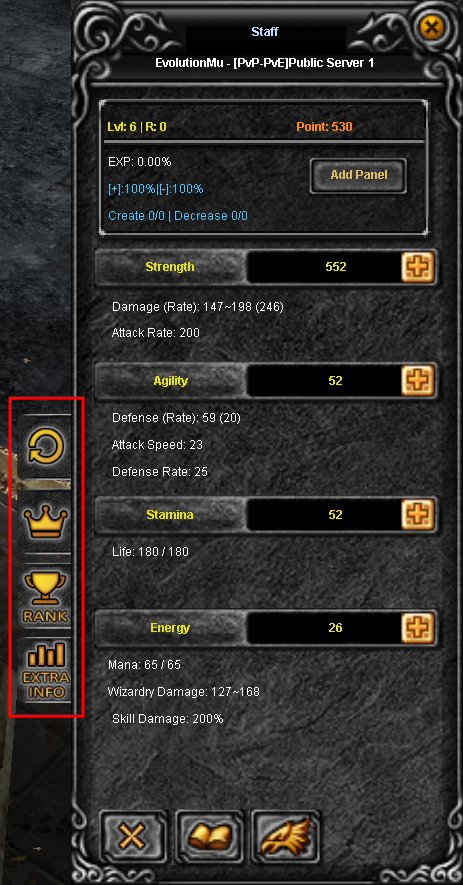
🔄Reset System: Opens the panel to perform Resets or Master Resets and see the level and zen requirements. [Y]
👑Menu Buy Vip: Info Here!
🏆Game Rankings: Direct access to the leaderboards (Top Resets, Level, etc.). [F8]
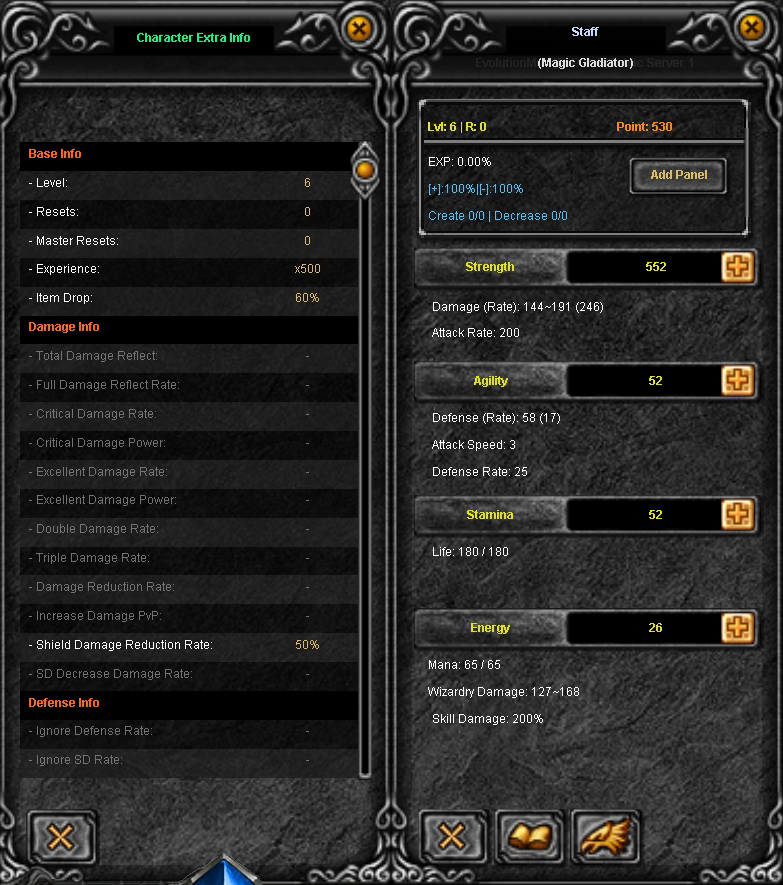
📈Character Extra Info: Displays advanced statistics such as Excellent damage, Critical damage, and defense percentages.
🔄Reset System
Optimize your character by restarting its level to obtain rewards and greater power.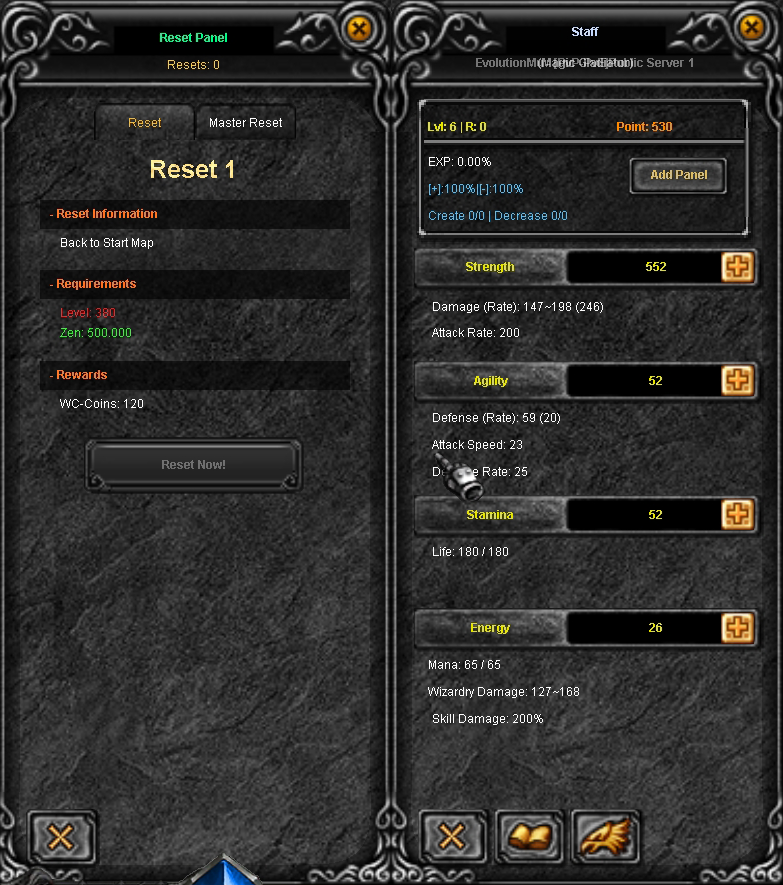 You can use the visual panel or quick chat commands:
Normal Reset: Use the Reset Now! button in the panel or type the command /reset.
Master Reset: Switch to the Master Reset tab in the panel or type /mreset.🏆Game Rankings
In this window, you can check who leads the server in the main categories.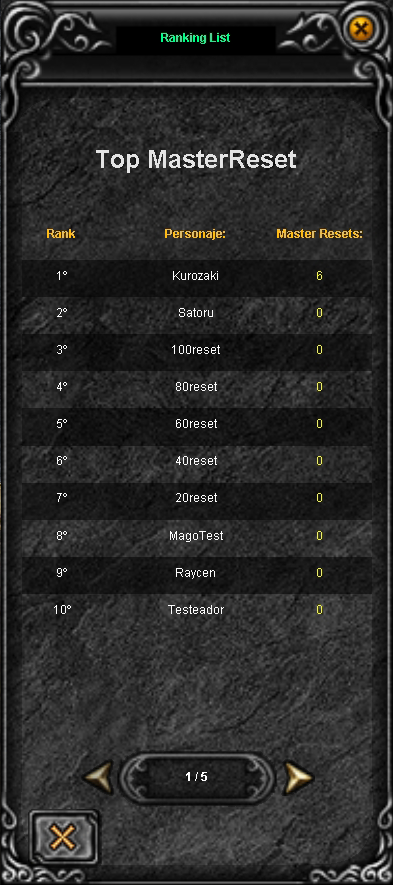
Use the arrows at the bottom to navigate between the different lists:
Master Reset.
Reset.
Level.
Blood Castle.
Devil Square.
📊Character Extra Info
In this panel, you can consult advanced statistics of your character that do not appear in the conventional window.